

Nimply Logo

💼 Use case · LinkedIn

Schedule LinkedIn posts — a month on one calendar

This is what four weeks of LinkedIn looks like when you schedule LinkedIn posts in one sitting instead of one panic at a time: profile posts and PDF document carousels queued into the slots your network is actually online — then published automatically while you get on with real work.

Profiles & PDF carousels · publishes automatically · drafts wait for approval

LinkedIn · next 4 weeks

14 scheduled
MTWTFSS
PDF
PDF
scheduled postPDFcarousel open queue slot

The manual version

Why posting to LinkedIn by hand quietly kills consistency

LinkedIn rewards showing up on a cadence, but the manual routine fights you: the post you meant to publish Tuesday morning gets written Tuesday night, the carousel never happens because exporting a PDF is a chore, and the cadence collapses the first genuinely busy week. None of that is a writing problem — it’s a logistics problem.

  • Write when you're sharp, publish when they're online

    Batch your drafts on your own schedule; the calendar takes care of the 8:30am Tuesday slot.

  • LinkedIn next to every other channel

    Your profile lives on the same calendar as the rest of your channels, so the cadence stops depending on memory.

  • Carousels without the PDF chore

    LinkedIn carousels publish as PDF documents — Nimply converts and publishes yours automatically.

  • A cadence you can actually see

    Color-coded categories on the month view show the gaps before your audience notices them.

Inside Nimply

One planner for every LinkedIn post you’ve committed to

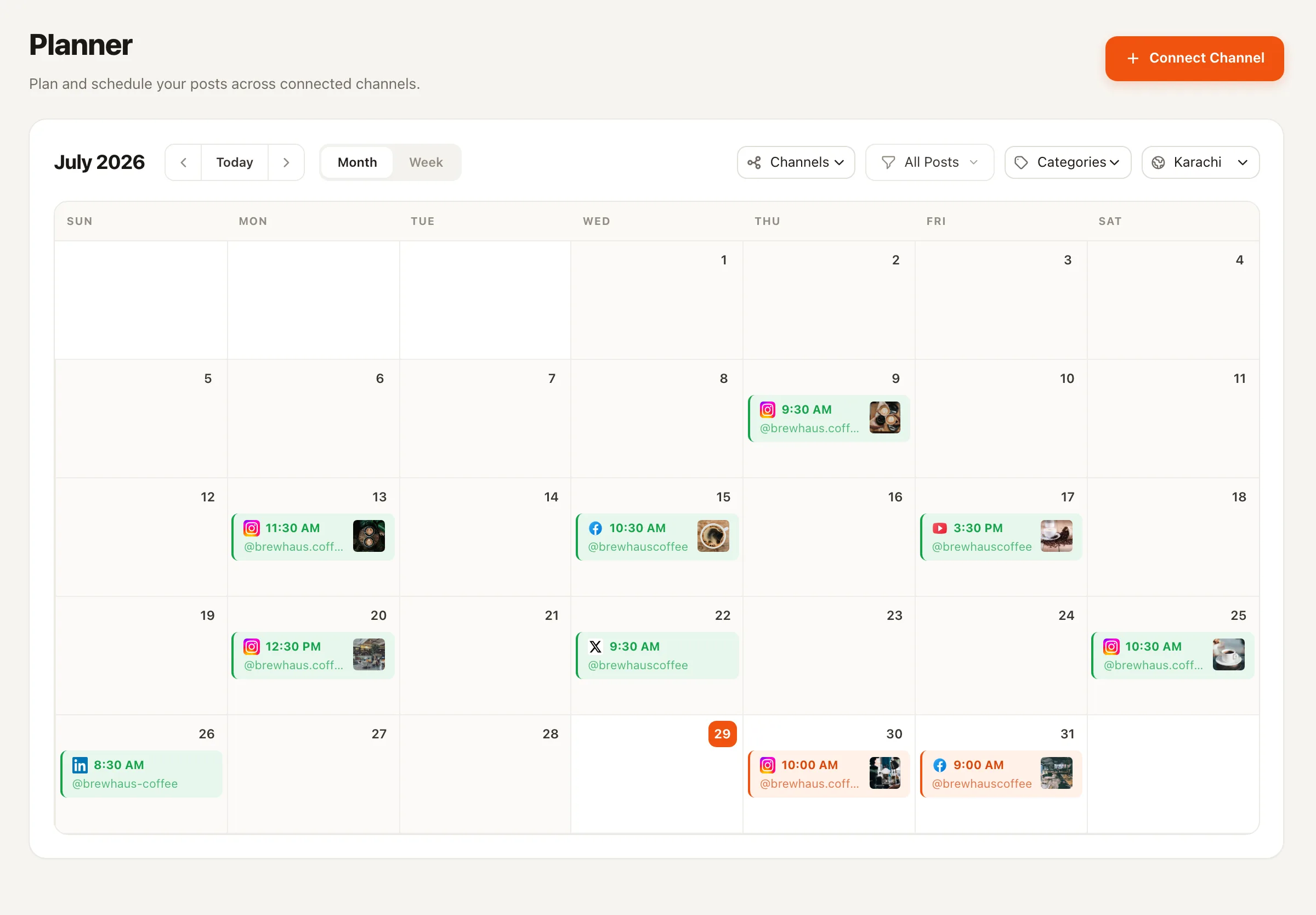
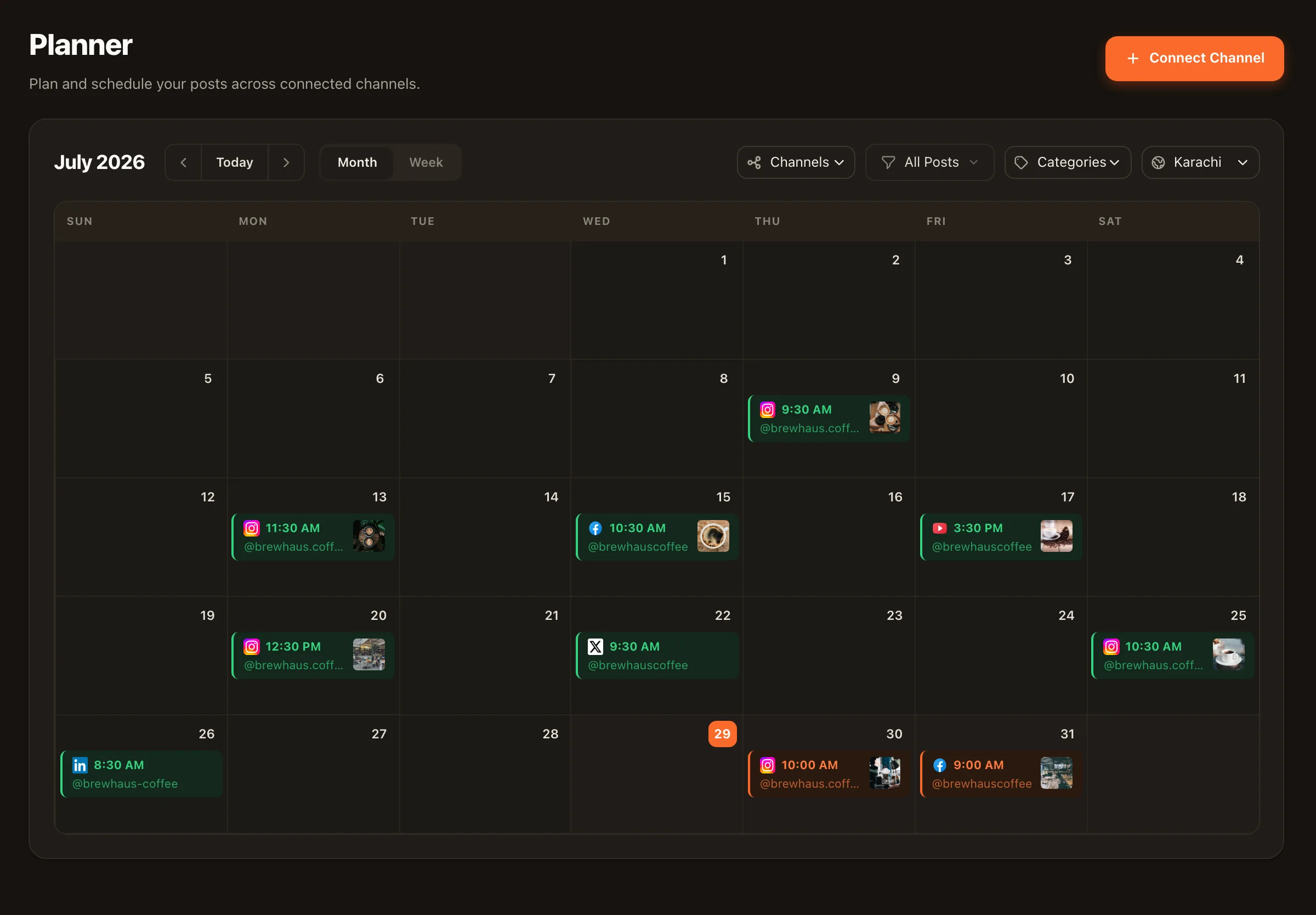
The planner is the same social media scheduling tool that runs the rest of your channels — month and week views, drag to reschedule, approval states at a glance. Your LinkedIn cadence stops living in your head and starts living somewhere your whole team can see.

The Nimply planner calendar with LinkedIn posts scheduled across upcoming weeks
The real thing: scheduled posts across channels, color-coded by category, drag-to-reschedule.

Setup

From empty calendar to scheduled month in five steps

An honest accounting — no “in seconds” theater. Connecting a channel takes an OAuth click; the real time goes where it should, into writing posts worth reading.

Got a backlog already written? Bulk CSV upload turns a spreadsheet of posts into a fully scheduled calendar in one import.

  1. 1

    Connect your LinkedIn profile

    One OAuth click and your profile becomes a channel with its own calendar row and queue.

  2. 2

    Draft in the composer

    Write the post, attach images or carousel slides, and preview how it renders. The AI assistant can draft or rework the caption in your brand voice if you want a starting point.

  3. 3

    Pick a time — or let the queue pick it

    Choose an exact date and time, or drop the post into your best-time queue and it takes the next preset slot.

  4. 4

    Route it through approval if needed

    Working with a team or client? Leave the post in draft and it waits for sign-off before it can be scheduled.

  5. 5

    Let it publish — and drag to adjust

    Nimply publishes automatically at the scheduled time. Plans changed? Drag the post to a new day on the calendar and you're done.

When writing is the bottleneck

A ghostwriter that feeds the calendar

Scheduling solves the logistics; the LinkedIn Ghostwriter agent helps with the supply. It drafts voice-matched LinkedIn posts on the cadence you choose — and like every Nimply agent, it never publishes directly. Draft, your approval, then schedule. The calendar fills; you stay the editor.

Platform notes

What’s specific to LinkedIn

  • Profiles, not company pages — Nimply publishes to LinkedIn profiles; we say that here rather than after signup.
  • Carousels are PDFs — that’s LinkedIn’s document format, and Nimply handles the conversion at publish time. The Carousel Designer agent can design the slides too.
  • Direct publishing — posts go out automatically at their scheduled time; no reminder-notification workarounds.

Running more than LinkedIn? The same calendar schedules every channel — see scheduling Facebook posts or let best-time queues pick your slots everywhere at once.

Scheduling LinkedIn posts — FAQ

Does Nimply schedule to LinkedIn profiles or company pages?

LinkedIn profiles. Connect yours and it becomes a channel with its own row on the calendar — scheduled posts publish to it automatically, PDF document carousels included. Company pages aren't supported, and we'd rather say that plainly than surprise you after signup.

How do LinkedIn carousels work when scheduled?

LinkedIn publishes carousels as PDF documents, which is a format most people don't want to hand-build. Nimply handles the conversion automatically: attach your slides, and at publish time they go out in LinkedIn's native document format. The Carousel Designer agent can also design the slides for you, approval-first.

Does Nimply actually publish the post, or just remind me?

It publishes. Once your LinkedIn profile is connected, scheduled posts go out directly and automatically at their scheduled time — no push notification asking you to open the app and paste.

What if I don't know the best time to post on LinkedIn?

Set up a best-time queue: define preset posting slots for your LinkedIn channel, then add posts to the queue and they fill the next open slot automatically. You stop deciding a time for every single post.

Can AI help me write the posts?

Two ways. In the composer, the AI assistant drafts captions in your brand voice (uses AI credits). Or hire the LinkedIn Ghostwriter agent, which drafts voice-matched LinkedIn posts on a cadence you set — every draft waits for your approval before anything is scheduled.

Can my team or client review posts before they go out?

Yes — the approval workflow holds any post as a draft until someone with approval rights signs off. Approved posts move to scheduled; nothing publishes unreviewed. It's the same rail AI agent drafts run on.

Your next month of LinkedIn, planned this afternoon

Connect your profile free, batch your drafts once, and let the calendar do the showing up.