Nimply Logo

📄 Bulk scheduling

Bulk schedule social media posts — a month in one upload

Composing forty posts one screen at a time is data entry wearing a creative hat. When you bulk schedule social media posts with Nimply, the work moves to where it’s fastest — a spreadsheet — and one CSV upload turns every row into a draft or scheduled post on your calendar, ready for a single review pass instead of forty separate sessions.

your-september.csv · illustrative

contentdatetimechannel
“Behind the scenes at…”2026-09-0109:00instagram
“3 lessons from our…”2026-09-0217:30linkedin
“New tutorial is live…”2026-09-0412:00youtube

…one row per post, as many rows as you like

September · week 1

  • Mon 1Behind the scenes…
  • Tue 23 lessons from…
  • Thu 4New tutorial is…

Every row lands as a draft or scheduled post — reviewable, movable, yours to approve.

The right tool for the right day

When bulk beats one-by-one

Bulk upload isn’t how you should publish everything — it’s how you should publish these four things.

Batch days

You wrote twenty posts in one focused session — the worst possible follow-up is twenty separate composer sessions. Draft in a sheet while the momentum lasts, upload once, review once. This is the workflow virtual assistants run for clients every week.

For virtual assistants

Migrations

Switching tools with 60 scheduled posts in the old one? Export, reshape the columns, upload. A migration that threatens to eat a week becomes an afternoon — with every post reviewable before it re-enters the schedule.

The calendar it lands on

Evergreen libraries

A back catalog of proven posts is worth loading in bulk: get the whole library into Nimply in one pass, then let recycling keep it in circulation instead of in a spreadsheet nobody opens.

Evergreen recycling

Campaign loads

A launch means dozens of coordinated posts with hard dates. Building the whole sequence in a sheet lets you see the arc in rows before it becomes a calendar — and upload it as one reviewable batch, not a drip of late-night composing.

Publishing everywhere

The workflow, honestly

Four steps — and the third one is not optional

  1. 1 · Prepare the columns

    One row per post: content plus scheduling details. Spreadsheets are where find-and-replace, reordering, and seeing forty posts at once are effortless — do that work here.

  2. 2 · Upload

    Drop the CSV into the planner. Every row becomes a post in Nimply — as drafts or scheduled posts, never straight to your audience.

  3. 3 · Review as drafts

    The pass that separates bulk scheduling from bulk regret: check previews, tailor captions per platform, catch the date that collides with something real. Your approval workflow applies here like anywhere else.

  4. 4 · Schedule

    Confirm, and the batch takes its place on the calendar — where you can still drag, edit, and rethink any post right up to publish time.

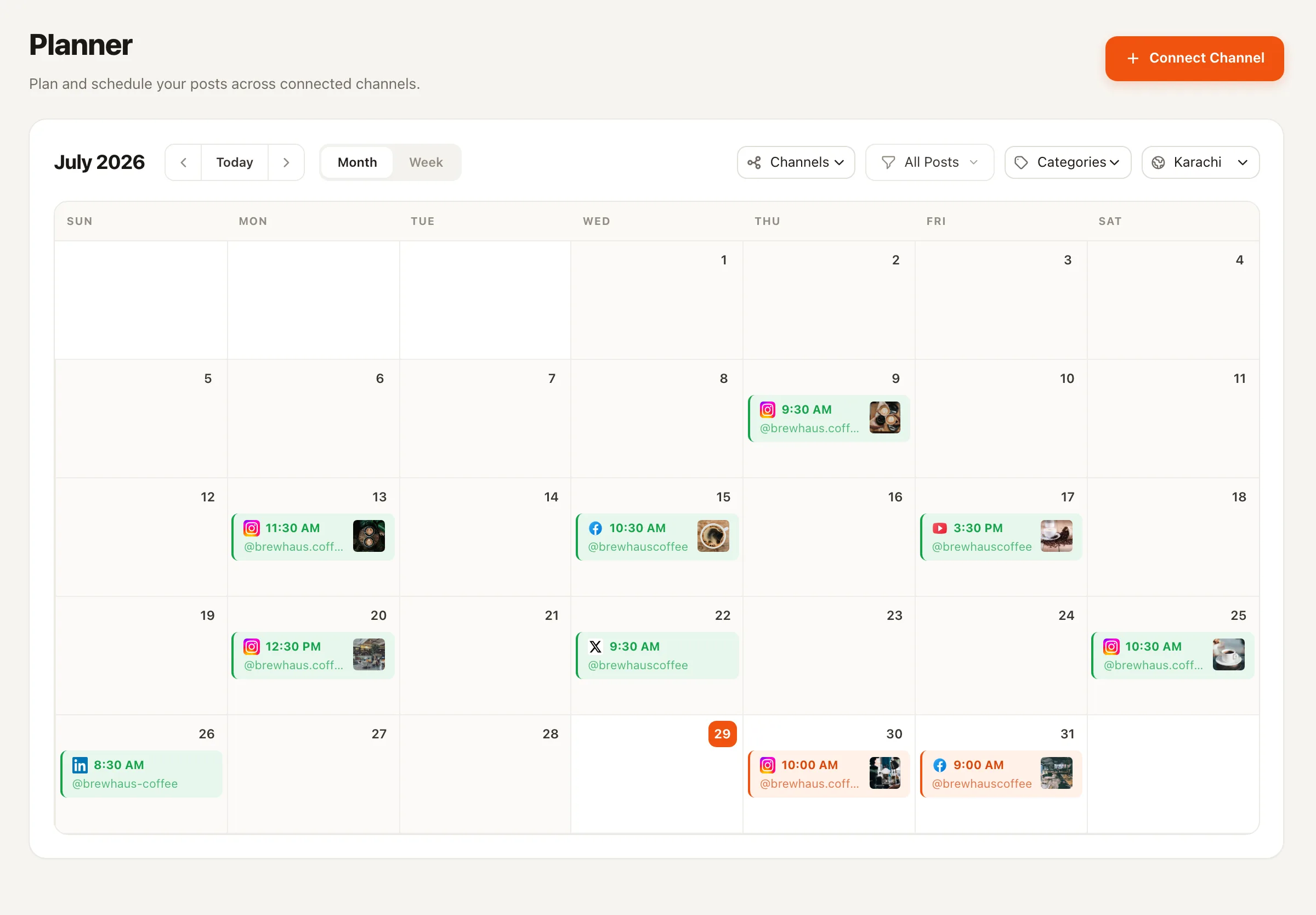
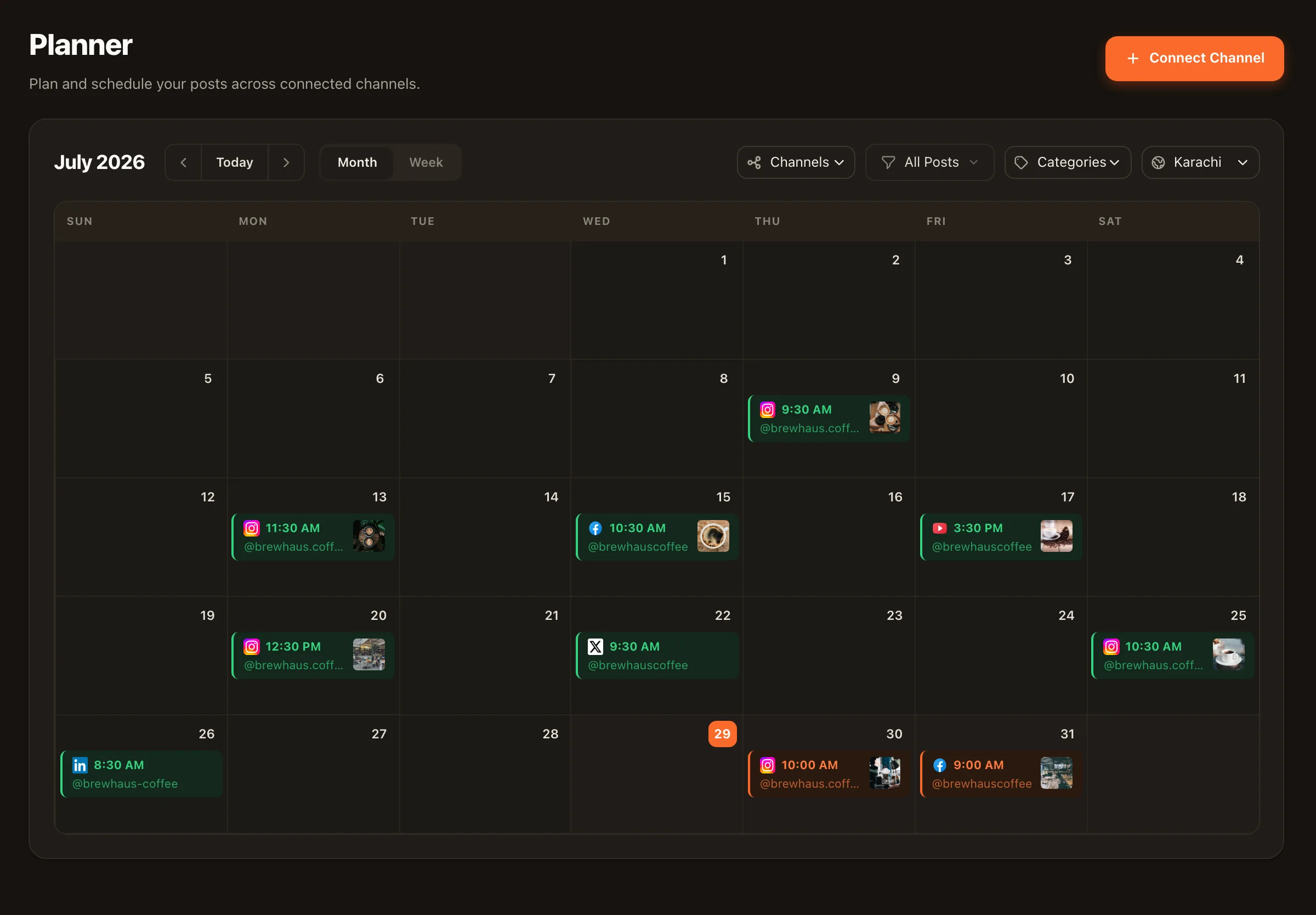
Nimply's month-view content calendar filled with scheduled posts across channels
Where the batch lands: the month view, with every imported post editable in place.
  • What still needs human eyes

    Per-platform tailoring. A caption that sings on LinkedIn can clunk on Instagram — the CSV carries the substance; the review pass carries the fit.

  • Pair it with best-time queues

    Skip hand-picking forty timestamps: load the content in bulk and let your preset best-time slots decide the when, so timing strategy lives in the slots, not the spreadsheet.

  • Approvals still apply

    Bulk-created posts flow through the same draft → approval → schedule rail as everything else. Volume never bypasses review.

Bulk scheduling — FAQ

How does bulk scheduling work in Nimply?

Through CSV upload in the planner: you prepare a spreadsheet with your post content and scheduling details, upload it, and every row becomes a post in Nimply — landing as drafts or scheduled posts. From there they're normal posts on your calendar: editable, movable, and subject to the same approval workflow as anything else.

Do bulk-uploaded posts publish immediately?

No — nothing publishes at upload time. Rows come in as drafts or scheduled posts, which means there's always a review window between your spreadsheet and your audience. That's deliberate: a formatting mistake in a CSV should cost you an edit, not a hundred broken posts in public.

What belongs in the CSV?

The essentials of each post: the content, and the scheduling details for when it should go out. Prepare the columns, keep one row per post, and let the upload do the transcription. The fine-grained work — per-platform caption tweaks, media checks, tagging — is better done in the composer after upload, where you can see previews.

Can I bulk schedule the same post to multiple platforms?

Cross-platform publishing is core to Nimply — one post can go to many channels. But resist pasting one caption everywhere: platforms differ in tone, length, and format. Bulk-upload the base content, then use the review pass to tailor per platform where it matters. See our post-everywhere guide for how to do this well.

Is bulk scheduling better than best-time queues?

They solve different halves of the problem and work best together. Bulk upload answers 'how do I get 40 posts into the system without 40 composer sessions?' Queues answer 'when should each one publish?' Load the content in bulk, let your preset best-time slots handle the when.

What's the biggest bulk-scheduling mistake?

Skipping the review pass. Bulk upload is a loading dock, not a publish button — the teams it works for treat the imported drafts as 90% done and spend a short session on the last 10%: previews, platform fit, dates that collide with real-world events. Set-and-forget is how a scheduled promo lands on the day of bad news.

Load the month. Review once. Move on.

Prepare a CSV, upload it free, and watch a spreadsheet become a reviewed, scheduled calendar in one sitting.