

Guide 2 · AI Agents
Hire your first AI agent
Agents are task-specific AI workers: each one is configured for a single job — answering support questions, ghostwriting LinkedIn posts, designing thumbnails — and runs with your context, on rails you control. This guide walks through hiring one the safe way: template, context, rails, review.
Browse the template gallery
Open the Agents area and you’ll find the template gallery: seventeen task-specific agents, from Customer Support and Sales & Lead to LinkedIn Ghostwriter, Content Repurposer, Clip Director, Trend Scout, and Designer (with ready-made Carousel Designer and Thumbnail Director presets). Each template card explains the job it does, what it needs from you, and shows an estimated credit cost per run before you commit to anything.
For a first agent, pick something with an obvious, repetitive workload. If your DMs and comments fill up with the same questions, start with Customer Support. If writing is your bottleneck, the LinkedIn Ghostwriter or Evergreen Recycler are good first hires — they only ever produce drafts.
Install it and give it your context
Hiring an agent runs a short setup wizard. This is where the agent gets its context: what your business does, your tone, your policies, topics that are off-limits. Writing agents also study your published posts to match your voice. The more concrete you are here — “shipping takes 3–5 days, we replace damaged orders, never promise discounts” — the better the first drafts will be.
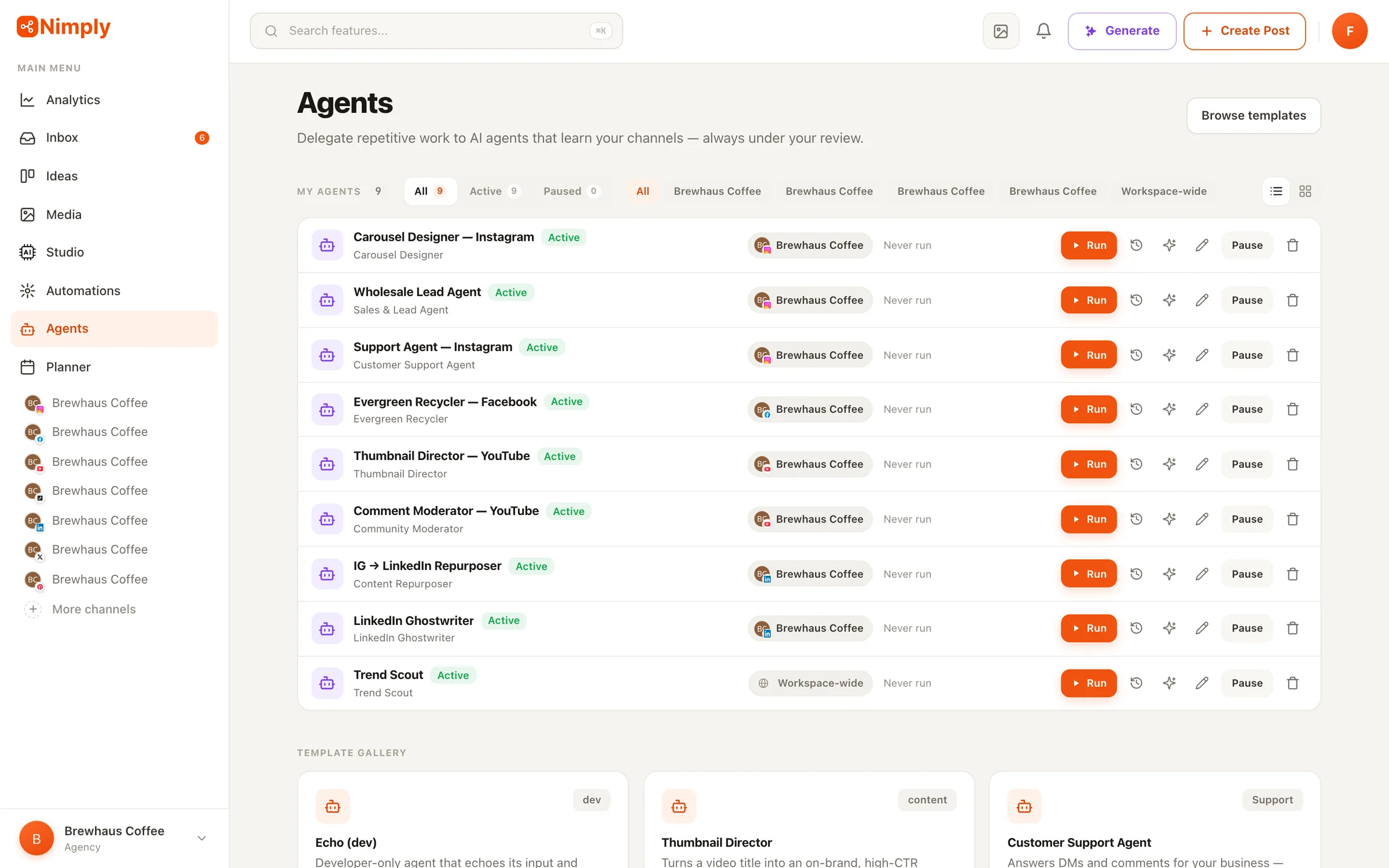
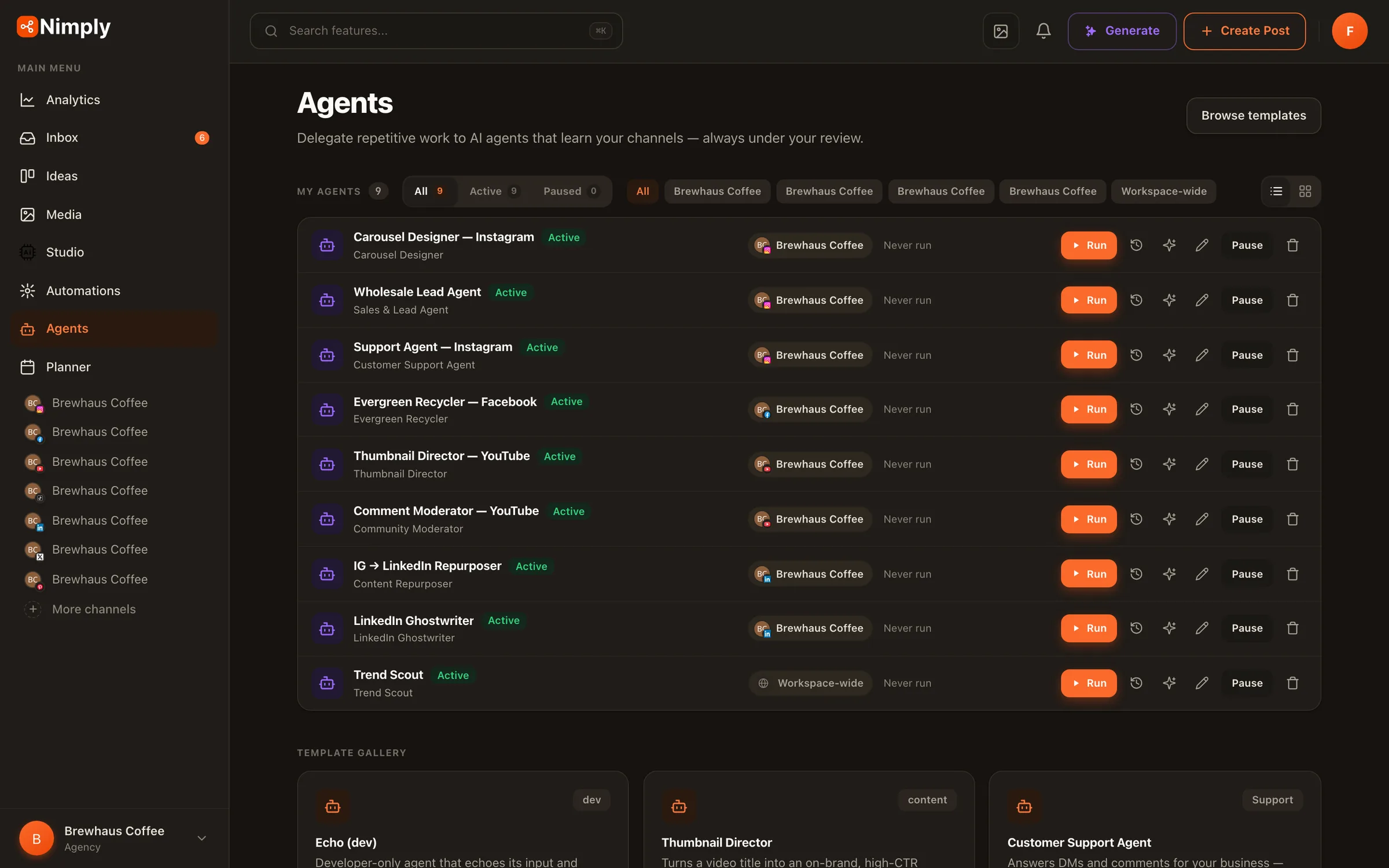
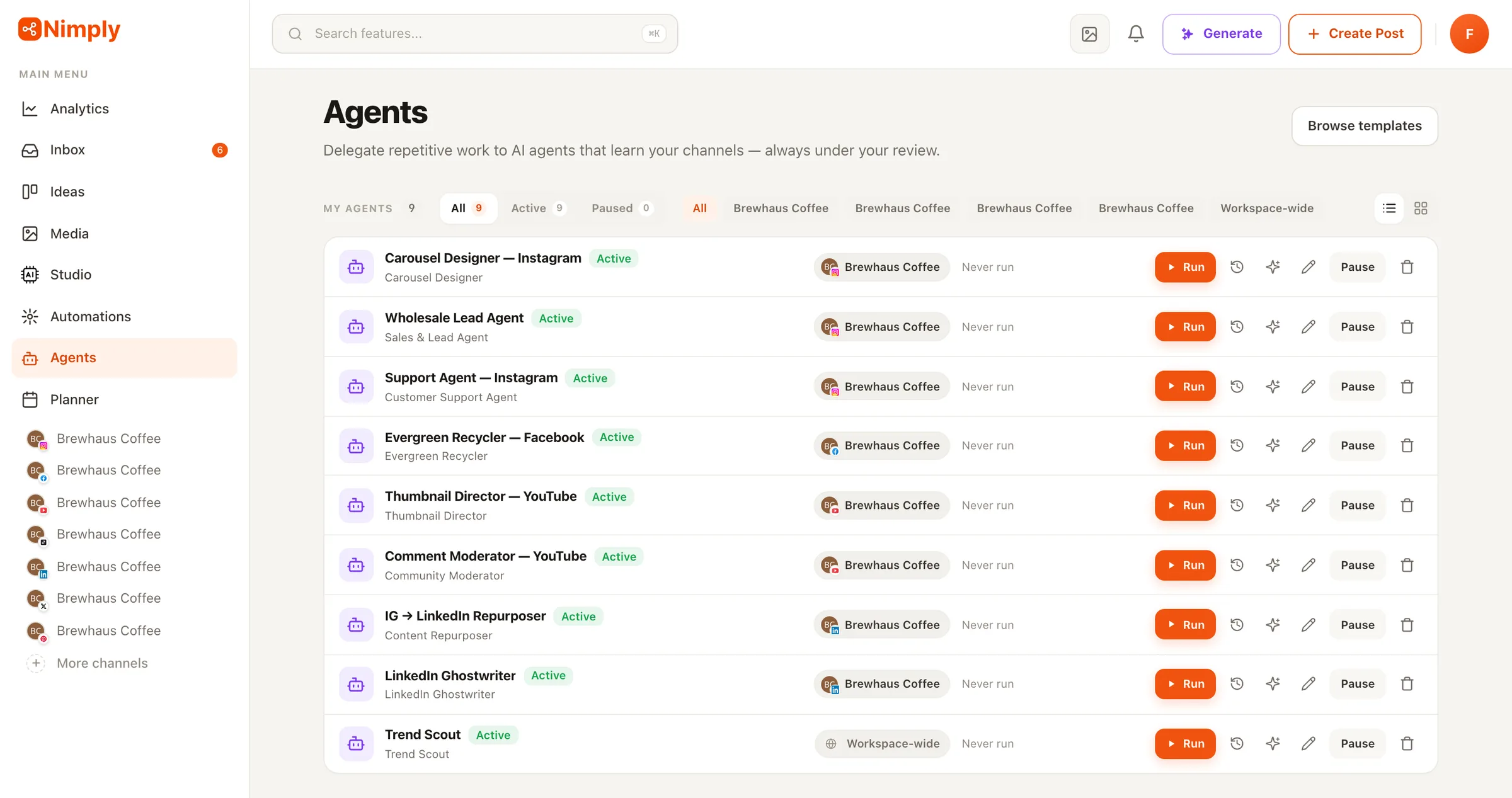
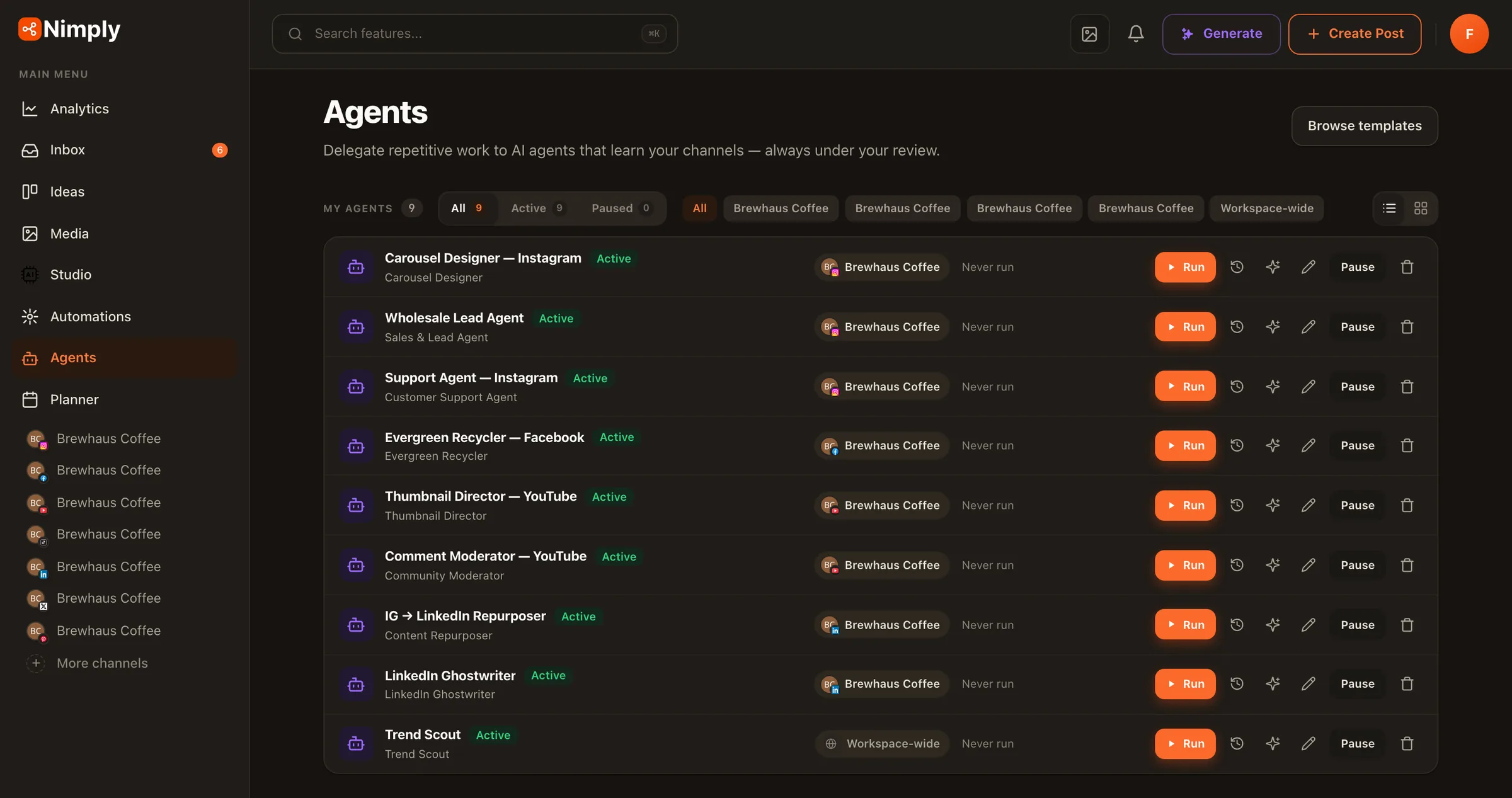
Once installed, agents live side by side in your workspace gallery, each with its own configuration, run history, and memory. You can hire several, but one well-configured agent beats three rushed ones.
Set the rails
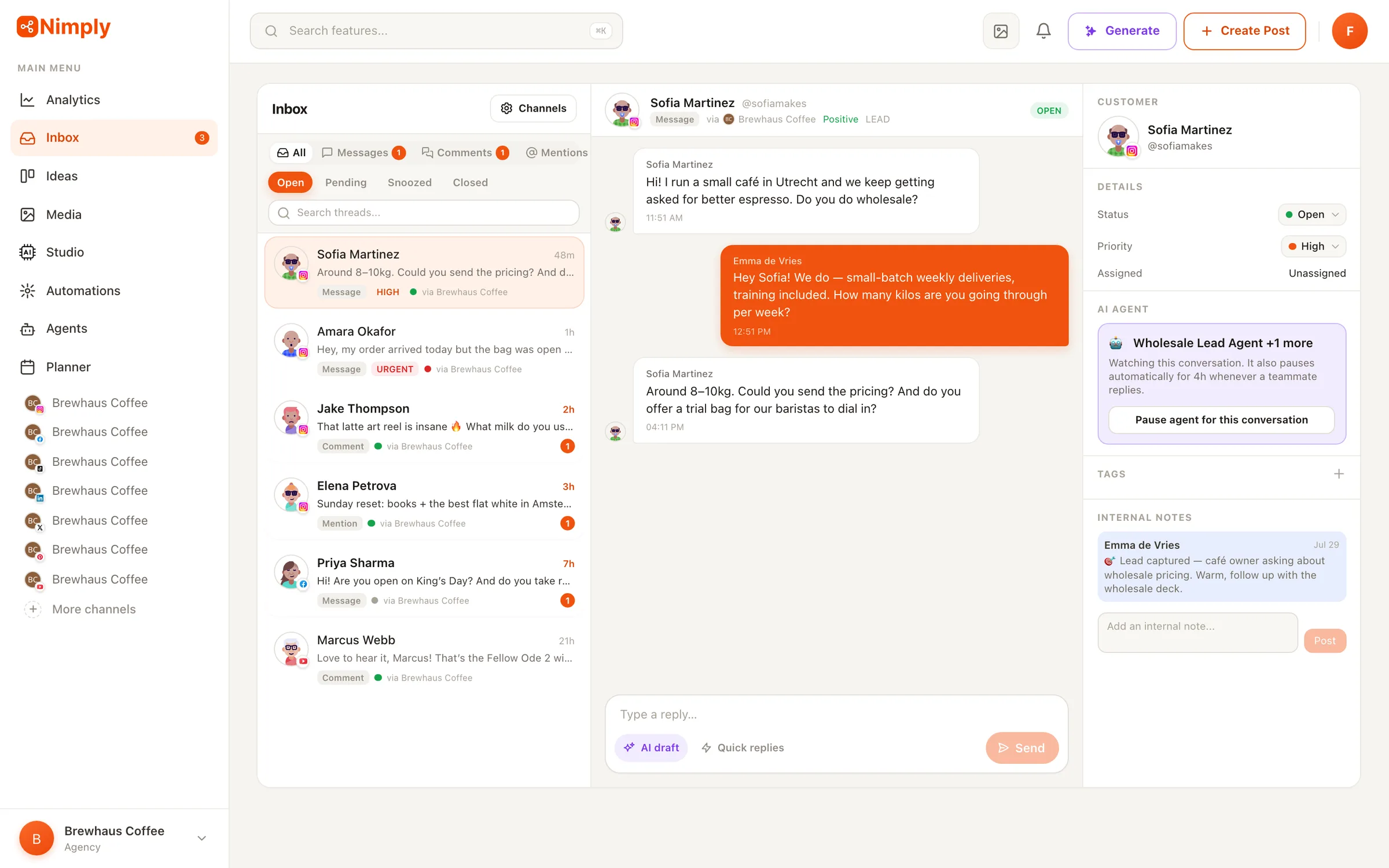
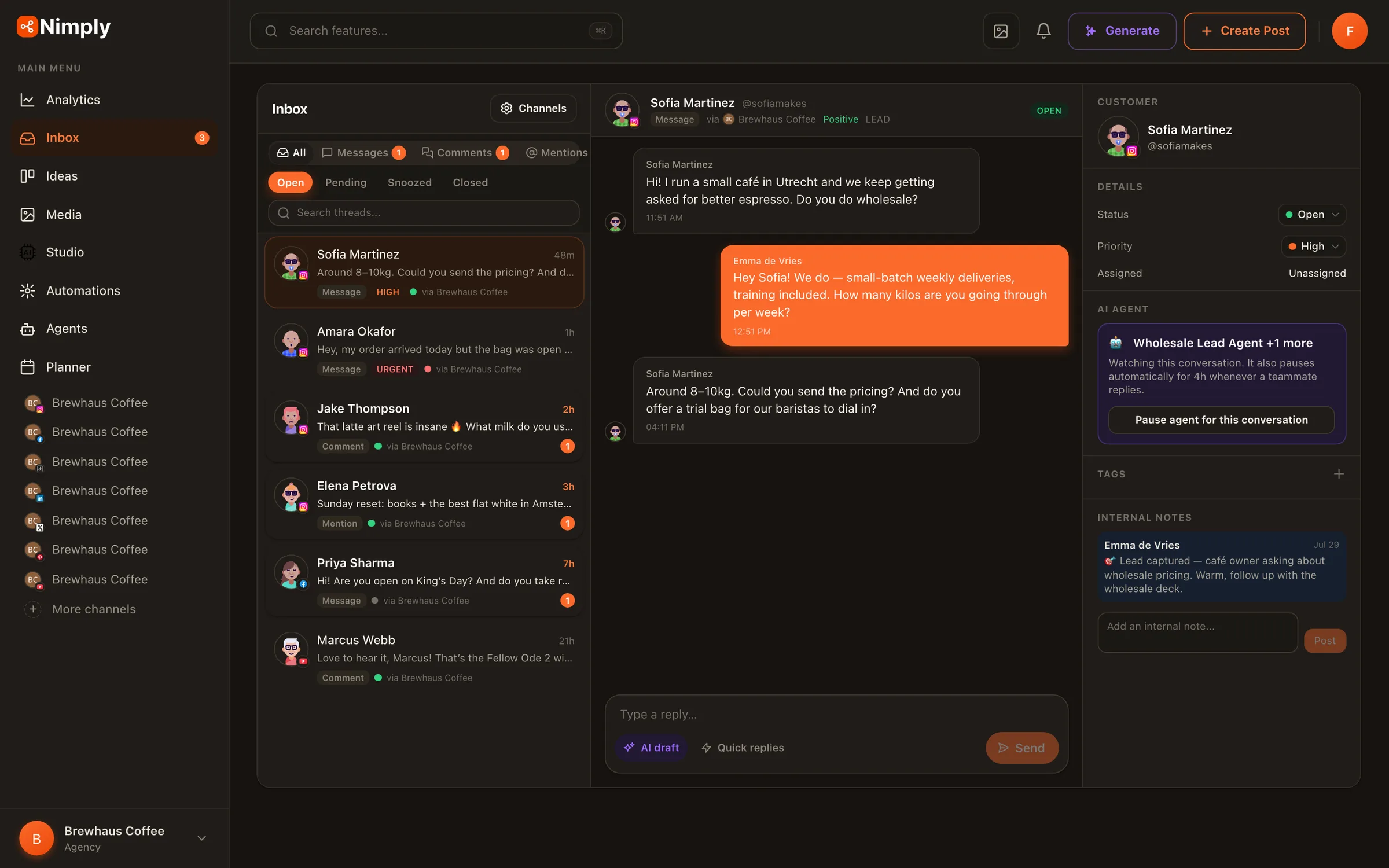
Agents in Nimply never act outside limits you set — that’s the core design. Content agents can only create drafts, which go through your normal approval and scheduling workflow; no agent can publish directly to a channel. Conversational agents default to draft mode: suggested replies are attached to conversations as internal notes for your team to review and send.
Auto mode — where an agent replies on its own — is strictly opt-in, rate-limited per conversation, and automatically stands down when a human teammate replies. You can also pause an agent on any single thread with one click. Read the full trust model on the AI Agents page.
Review the work
Now let it run. For a support or sales agent, new customer messages arrive in the unified inbox with the agent’s drafted reply attached as a note — you read the conversation, tweak the draft if needed, and send. Every run keeps a step-by-step trace of what the agent read and why it answered the way it did, and the exact credit spend is recorded on each run.
Your edits matter: when you correct a draft before sending, the agent compares your version with its own and saves the lesson as a memory — tone fixes, policy details, phrasing you prefer. Everything it has learned is visible, editable, and deletable.
Earn your way to auto
After a week or two of good drafts, you’ll know whether the agent has earned more autonomy. Flip your busiest channel to auto mode and keep the rest on draft; the guardrails — rate limits, human-takeover pauses, per-thread mute — stay on either way. If the quality dips, edit its context or memories rather than starting over: agents get better with specific feedback, not fresh installs.
Hire your first agent today
Pick a template, give it your context, and review its first drafts — on rails you control from day one.