

Guide 5 · AI Creation
Create content with AI
Nimply's creation tools live where you plan and schedule, so nothing gets copy-pasted between apps: the AI Assistant drafts in the composer, the Content Studio generates visuals, and live industry feeds turn into posts in a couple of clicks. All of it runs on the AI credits included with your plan.
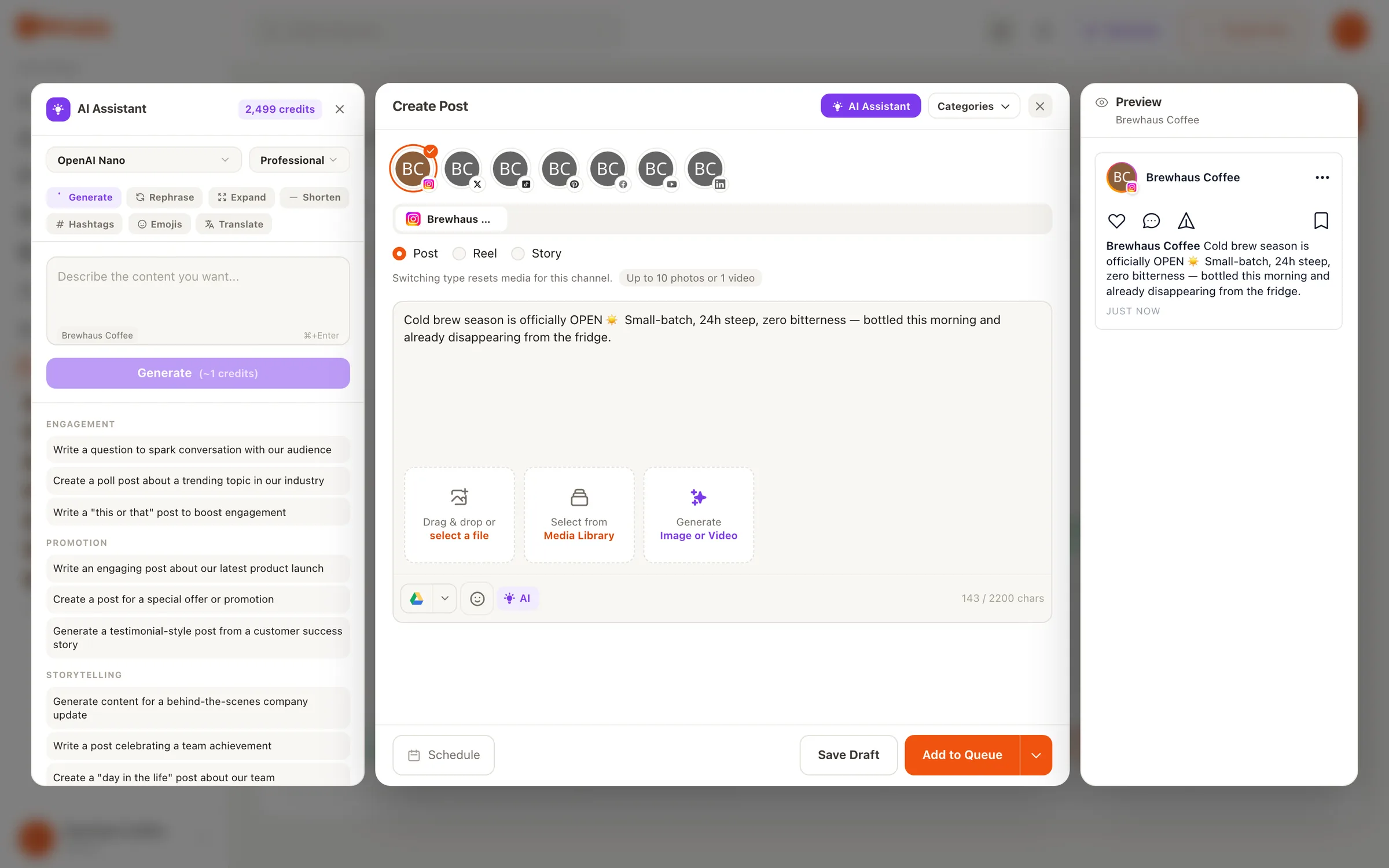
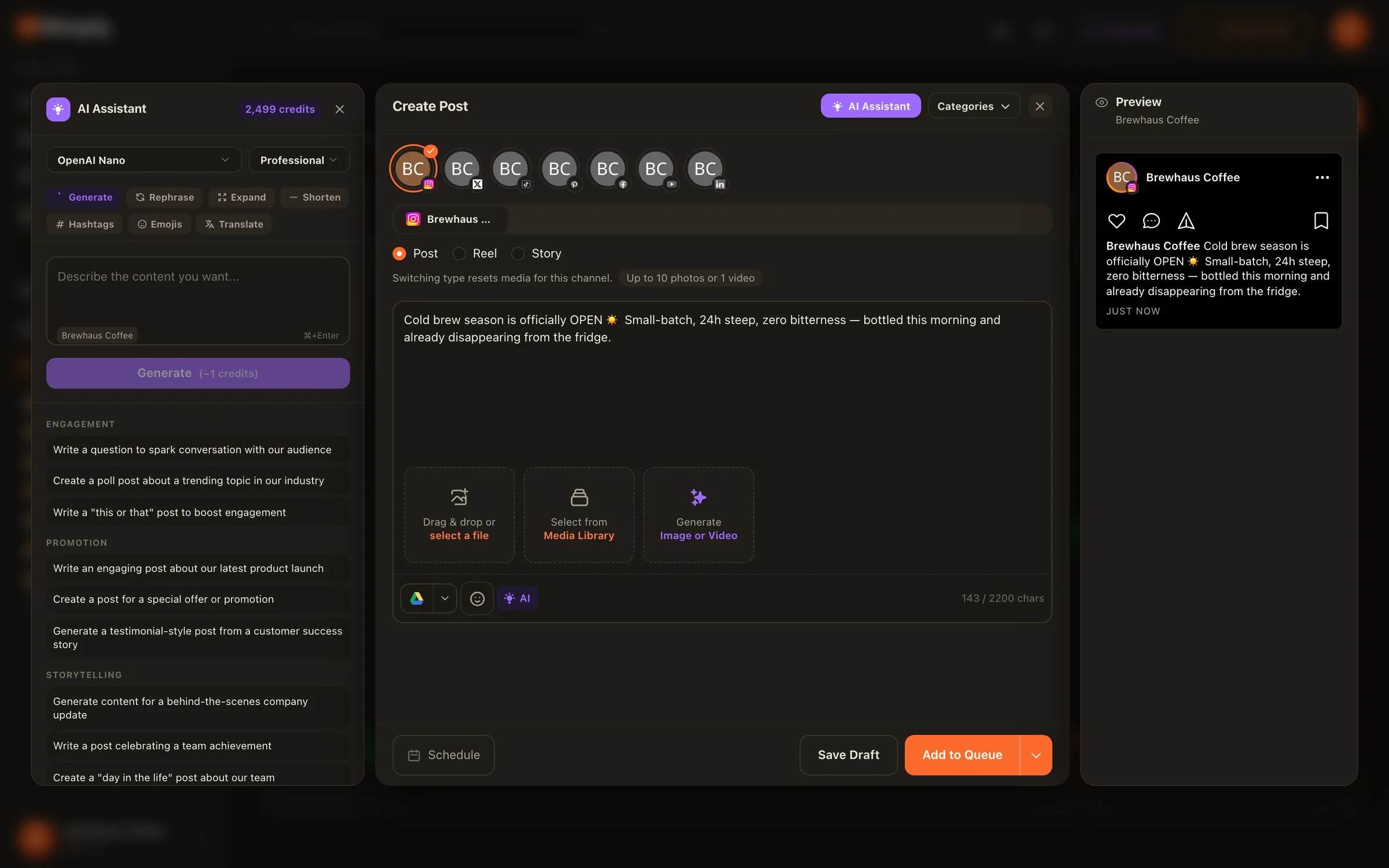
Draft with the assistant in the composer
Open the composer and the AI Assistant sits alongside your post: give it a topic, a few keywords, or a rough draft and it generates captions, hooks, and hashtag suggestions. The most useful habit is the per-platform rewrite — write the message once, then have the assistant retune it for LinkedIn’s tone, X’s length, and Instagram’s style before you schedule each version.
Writing is light on credits — a caption costs only a few of the AI credits your plan includes each month. More on what it writes on the AI Assistant page.
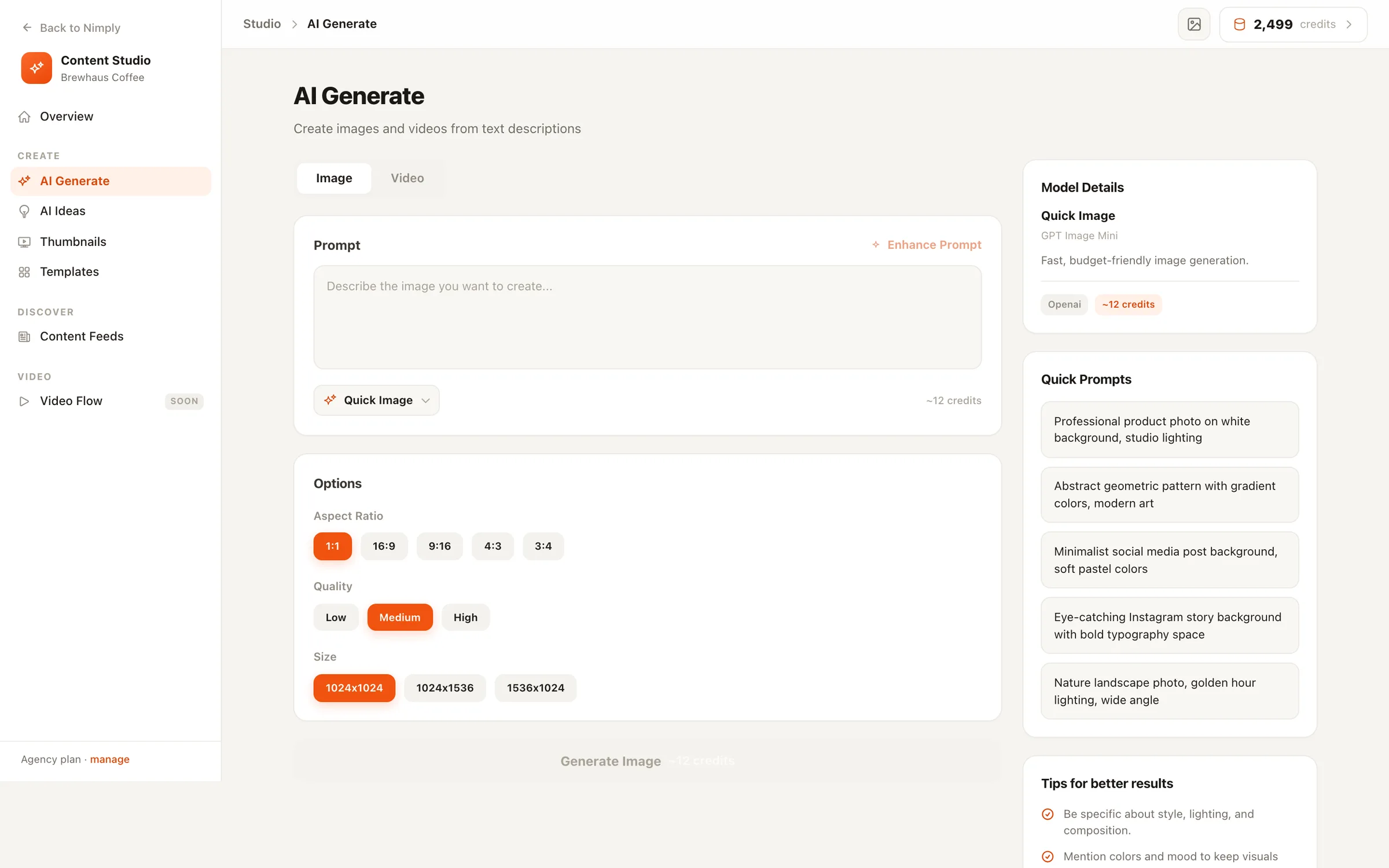
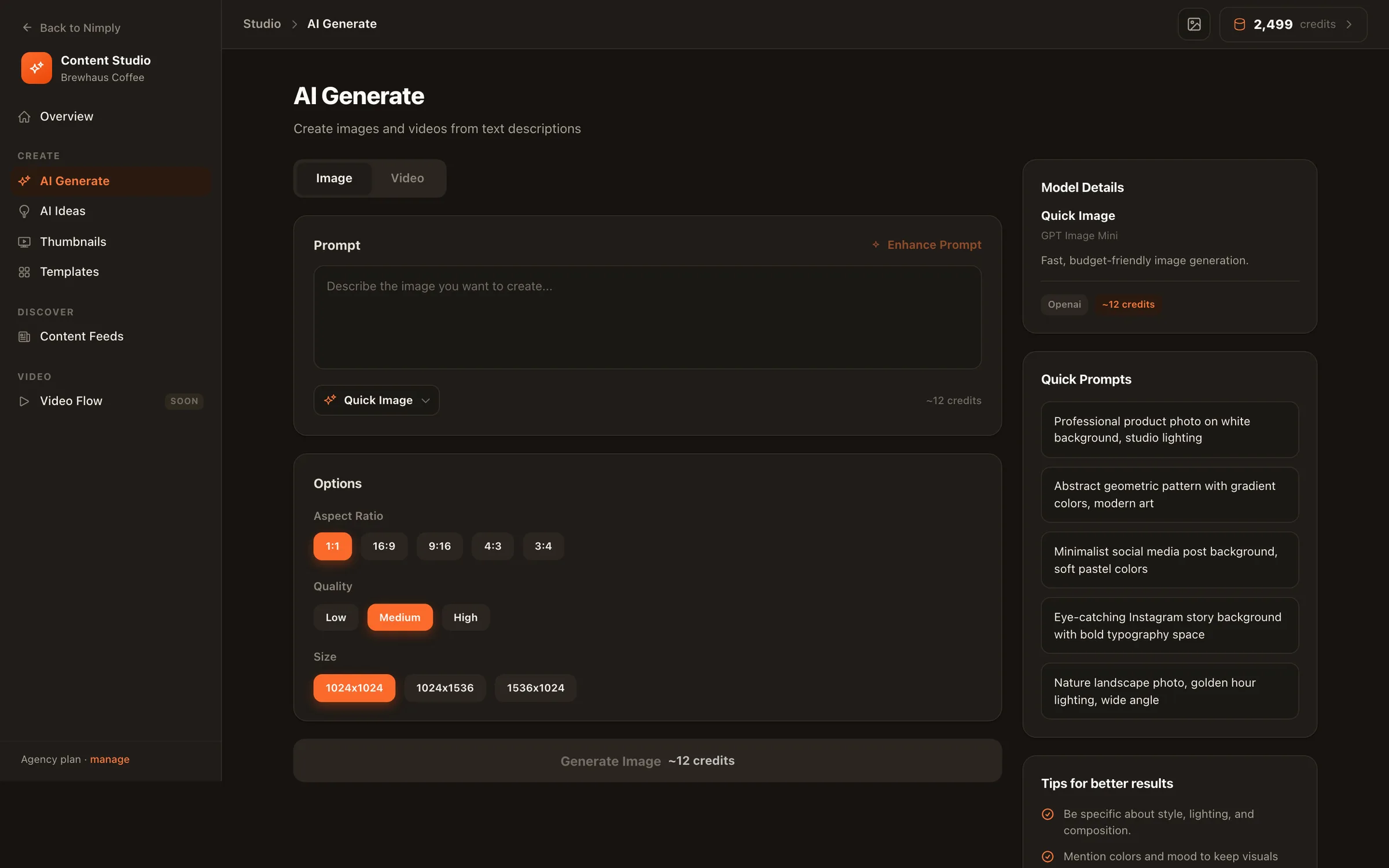
Generate visuals in the Content Studio
The Content Studio is the visual side of the workflow: describe what you need and generate original images for your posts, with your brand voice and style settings keeping the output consistent. The studio also houses the more specialized tools — the YouTube thumbnail composer with side-by-side comparison, and carousel rendering for Instagram images and LinkedIn PDFs.
Generated assets land in your media library, ready to attach to any post. Image generation spends AI credits per generation; editing and re-rendering existing layouts doesn’t regenerate the image, so iterate freely.
Turn industry feeds into posts
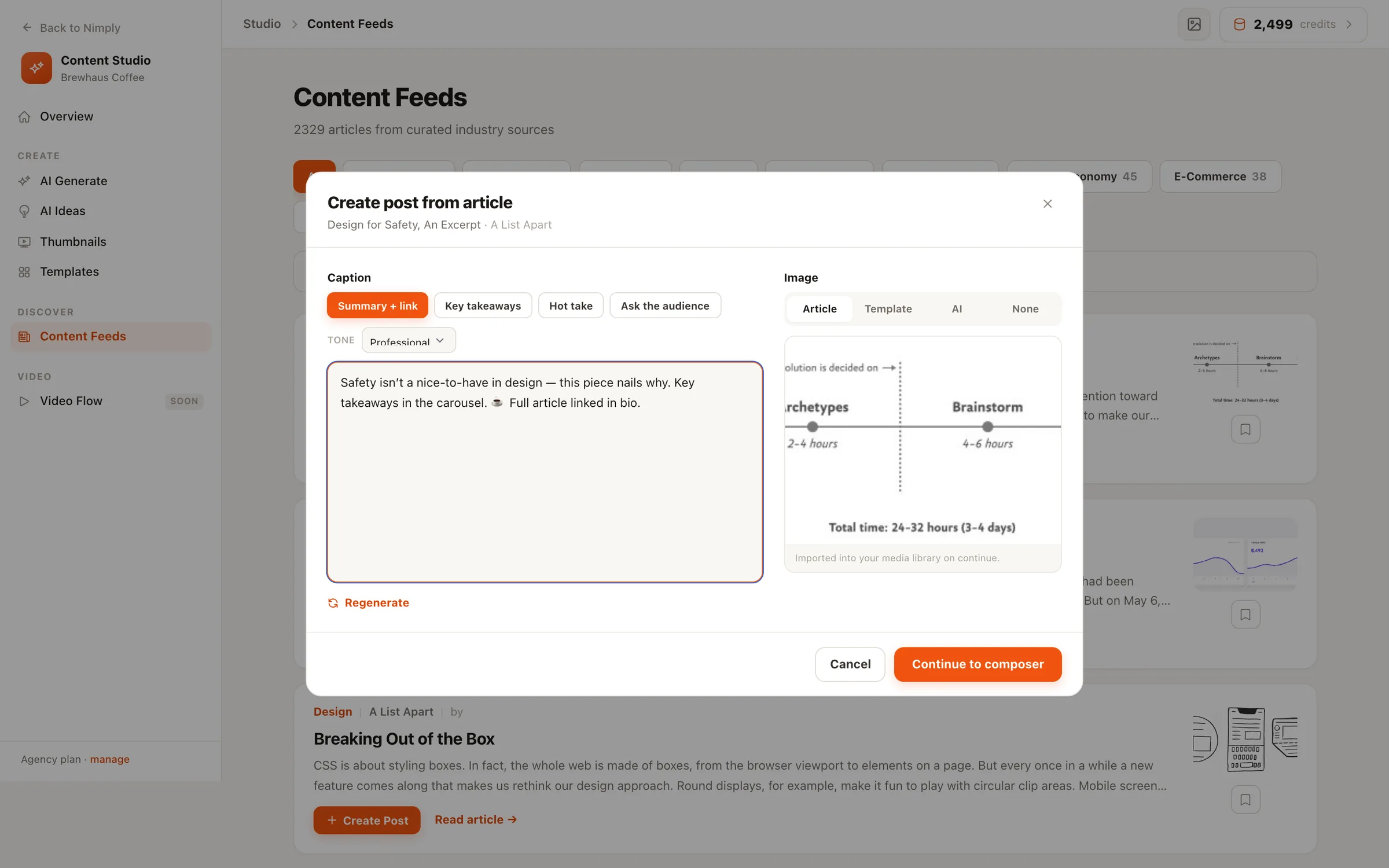
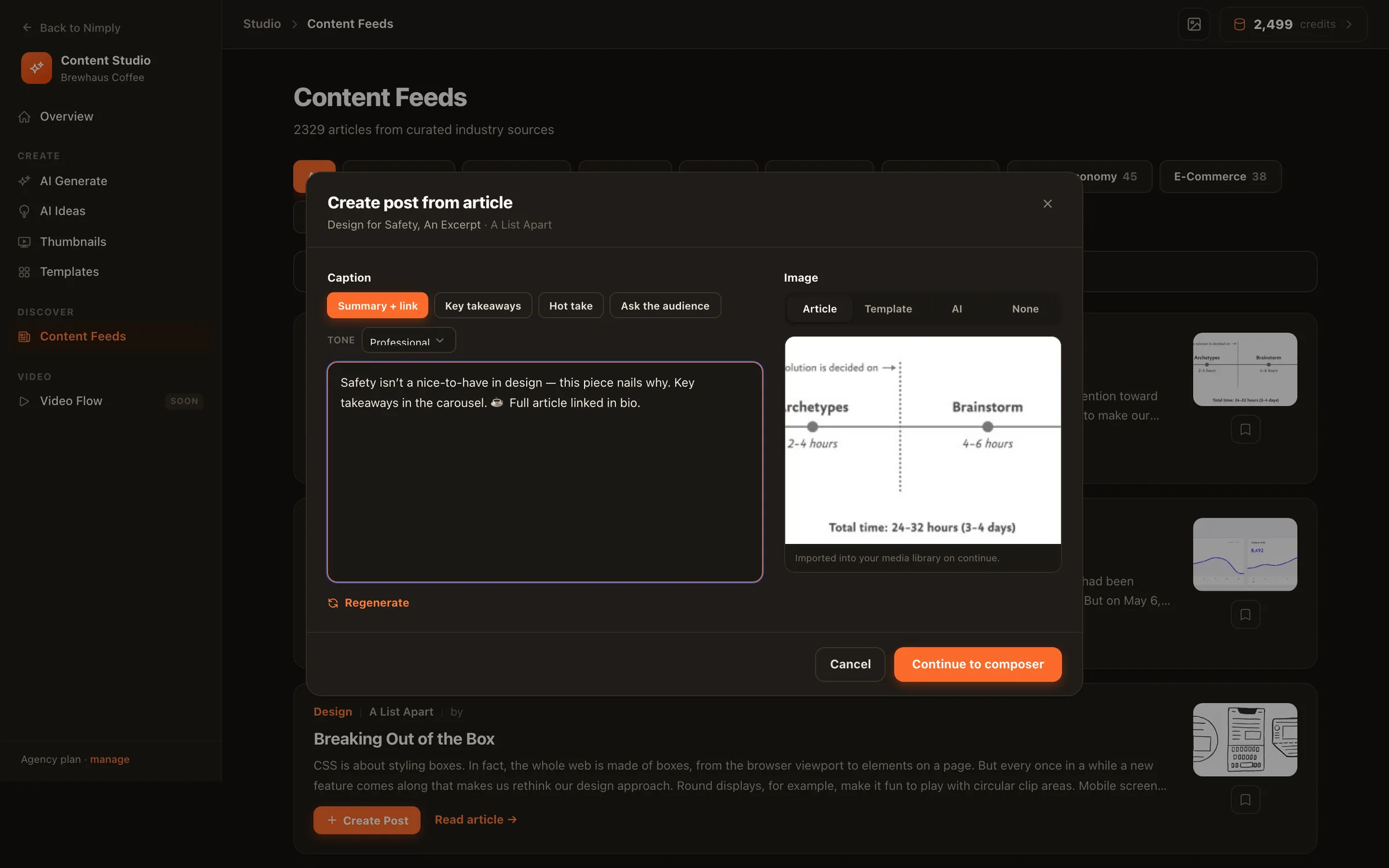
The blank page is the real enemy, so Nimply feeds you raw material: the Feeds area streams live articles from 2,200+ industry sources. When something fits your audience, one click starts a post from it — the create-post flow opens with the article as context, and the assistant drafts your take rather than a generic summary. Feed finds can also be saved to your Ideas boards to plan around later.
This pairs naturally with the agents: Trend Scout watches your industry sources continuously and files suggestions as Ideas cards, while the Content Repurposer and Evergreen Recycler turn your own best posts into fresh drafts. See the AI Agents page for the full roster.
Keep an eye on your credits
Every plan includes AI credits that refill each month, and all the AI tools draw from the same wallet — assistant drafts, image generations, agent runs. Costs are shown before anything runs, and credit packs you buy never expire. The full picture is in how AI credits work. In practice, writing is cheap and image generation is where credits go, so let the assistant iterate freely and be a little more deliberate with visuals.
Setting your brand voice once pays for itself here: with tone, audience, and style captured in your workspace settings, first drafts start closer to usable, which means fewer regeneration rounds across every tool that writes or draws for you.
Schedule it like everything else
Whatever the AI helped create, it ships through the same pipeline you set up in the getting started guide: draft, optional approval, calendar slot, auto-publish. That consistency is deliberate — AI accelerates the creation, but nothing reaches your audience without passing the same review your hand-written posts do.
Create your next week of content
Draft with the assistant, generate the visuals, and schedule the lot — free plan included AI credits and all.