

Nimply Logo

Thumbnail Studio

The YouTube thumbnail studio that plans before it renders

Most AI thumbnail tools burn credits guessing. Nimply’s Thumbnail Studio writes an editable brief first, renders only what you approved, lets you edit the scene by chat and the title for free — then sets the result on your video without leaving the app.

Editable brief before any render · free title & layout edits · set on video from Nimply

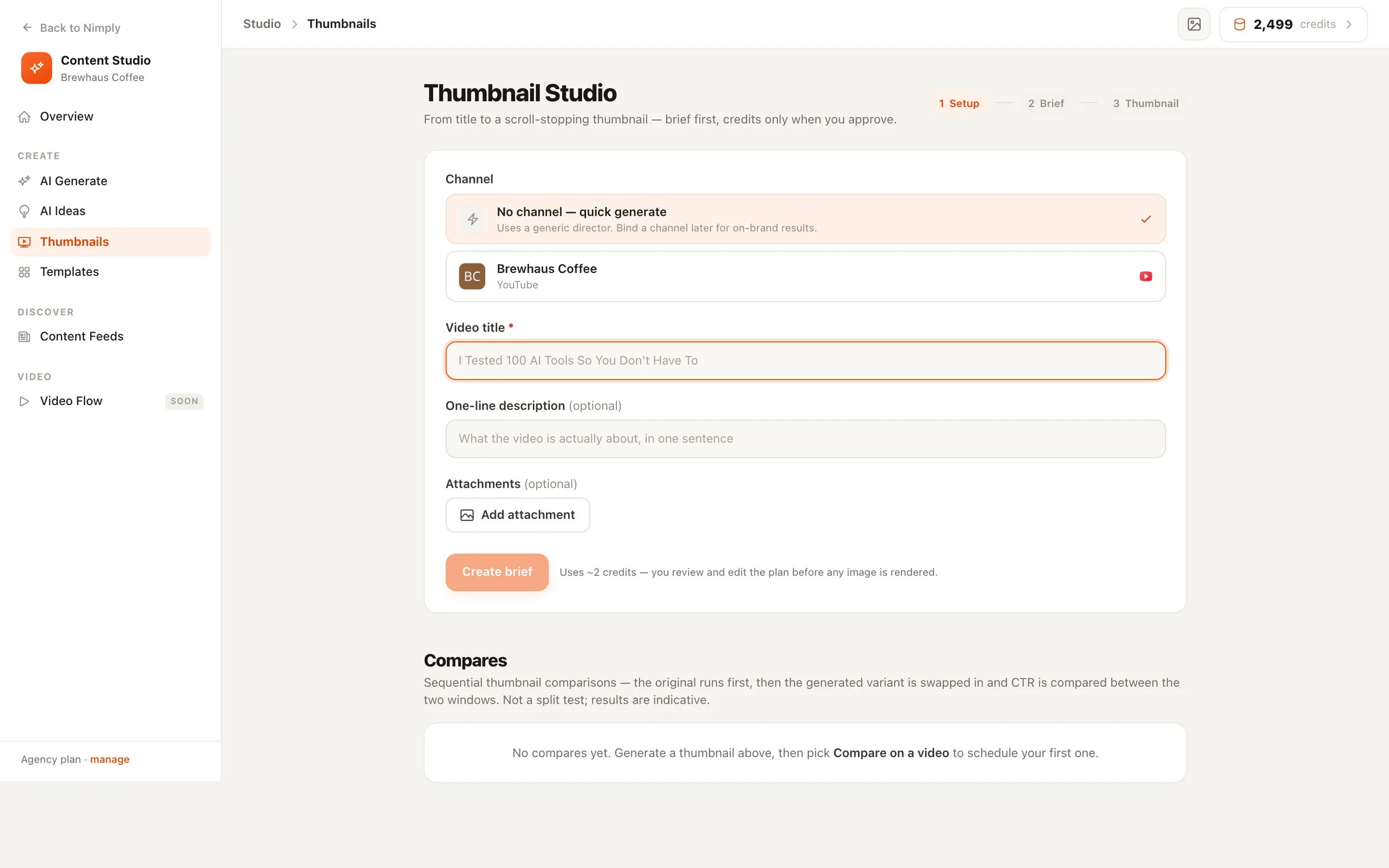
Nimply's YouTube Thumbnail Studio with an editable brief, rendered thumbnail variants, and chat-style edit controls
Brief on the left, renders on the right — and every scene edit is one chat instruction away.

How it works

Brief → render → edit → on the video

The Studio treats a thumbnail like a small production: agree on the plan first, then spend credits executing it.

  1. 01

    Point it at your channel

    Pick the YouTube channel the thumbnail is for and attach reference images from your media library — your face, a product shot, a screenshot the scene should build around.

  2. 02

    Review an editable brief

    Before any image is rendered, the Studio drafts a brief — scene, composition, title treatment. You read it, edit it, and approve it. The brief costs about 2 credits; no renders happen behind your back.

  3. 03

    Render and direct edits

    Generate variants from the approved brief, then refine the one you like with chat-style instructions — each edit re-renders the scene and re-applies your title automatically.

  4. 04

    Set it on the video

    Push the finished thumbnail straight onto a YouTube video from inside Nimply — or schedule a Thumbnail Compare to see how it performs against the current one.

The editor

Edit like a director, not a prompt engineer

The scene and the title are separate layers — so changing your mind about the words never costs a re-render, and changing the scene never wrecks your typography.

  • Chat-style scene edits

    “Make the background stormier”, “swap the laptop for a phone” — each instruction re-renders the scene and re-applies your title automatically.

  • Title & layout panel — free

    Change the title text, placement, and colors with instant server-side re-composites. Wording tweaks never touch the image model or your credits.

  • Second language line

    Each title line carries its own colors and language — stack a translated line under the original for bilingual channels.

  • Pro refine when it matters

    Re-render your exact composition on the Pro model for a sharper final image. It uses more credits, and says so before you click.

After the render

Set on YouTube video

Pick the video and the finished thumbnail goes live on it — no downloading, no YouTube Studio round-trip.

Compare on a video

Schedule a Thumbnail Compare: the current thumbnail runs first, then yours is swapped in and click-through is compared with real YouTube data.

Saved to your media library

Every version lands in the workspace media library, ready to reuse — the composer can also open this same flow when a post needs a thumbnail.

Tool or agent?

Drive it yourself — or hire the Director

This page · Studio tool

Thumbnail Studio

You’re the director. Write and approve the brief, attach your own reference images, steer every render with chat edits, and polish the title by hand. Best when you have a specific thumbnail in your head and want full control getting there.

Agent-powered

Thumbnail Director agent

Want it fully done for you? The Thumbnail Director agent studies your channel’s niche and brand colors, generates click-worthy concepts on its own, and can set the winner directly on your video.

Meet the Thumbnail Director →

Thumbnail Studio — FAQ

How is the Thumbnail Studio different from the Thumbnail Director agent?

The Studio is a hands-on editor: you write and approve the brief, direct every render and edit, and decide when it goes on the video. The Thumbnail Director is an AI agent that does the directing for you — it studies your channel's niche and brand colors, proposes concepts, and can set the winner on your video. Same rendering engine, different amount of steering wheel.

Does every change cost credits?

No. Title and layout changes — the text itself, its placement, its colors — re-composite instantly server-side and are free. Credits are spent where an image model actually runs: the brief (about 2 credits), scene renders, chat edits that change the scene, and Pro refines. The Studio tells you before each of those.

Can I use my own photos in the thumbnail?

Yes. Attach images from your media library to the brief — a face, a product, a screenshot — and assign each one a role so the Studio knows whether to feature it, reference its style, or build the scene around it.

What is “Compare on a video”?

A sequential comparison, not a split test: your video keeps its current thumbnail for a period, then Nimply swaps in the new one and compares click-through using real YouTube data. Every comparison you schedule is listed in the Studio so you can see what actually moved CTR.

Can I add a title in another language?

Title lines are independent — each line has its own colors and language, and you can stack a second language line under the first. Because titles are composited over the scene, switching the wording or language never re-renders the image.

Is the Thumbnail Studio free?

Every workspace can open and explore the Studio. Generating briefs and renders runs on the monthly AI credits included with paid plans — the free plan shows exactly what you'd get and where the upgrade applies.

Your next thumbnail, planned before it's rendered

Start free, review your first brief, and put the finished thumbnail on a video without leaving Nimply.